Understand Linux Permissions
Introduction
Linux permissions are a fundamental part of the Linux security model. They control who can access files and directories and what operations those users can perform.
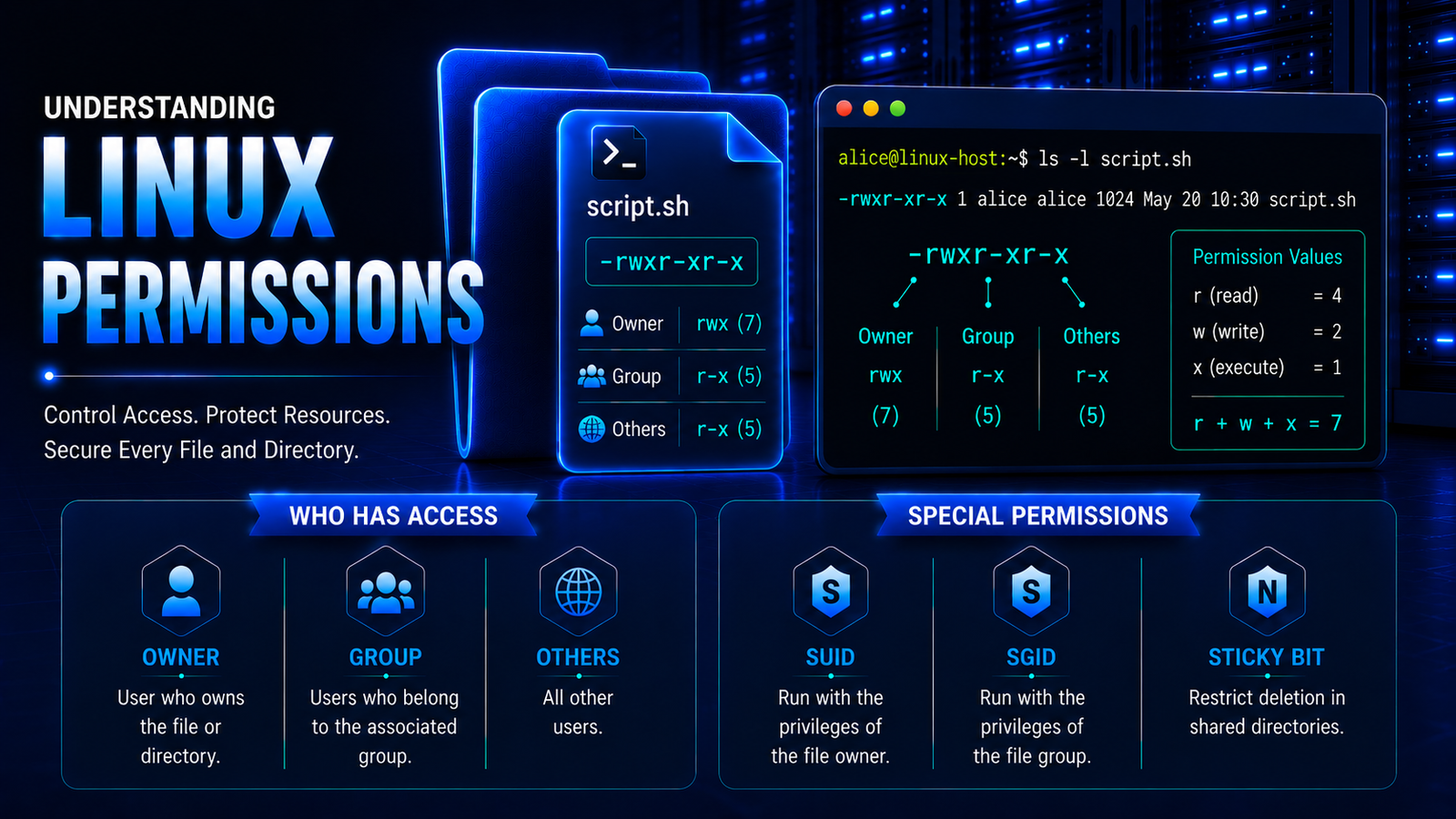
Linux assigns permissions to three categories of users: the owner, the group, and others. Each category can have three basic permissions: read, write, and execute.
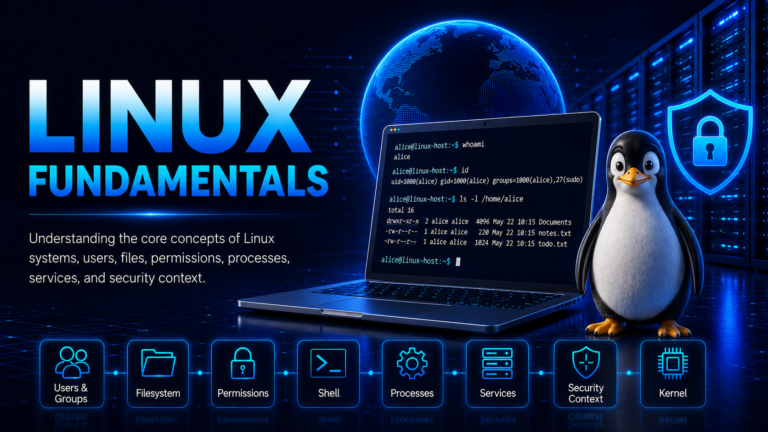
A basic understanding of Linux Fundamentals is important for understanding how these permissions work, particularly the concepts of users, files, directories, and ownership. This provides the foundation for understanding how Linux controls access to system resources.
What Are Linux Permissions?
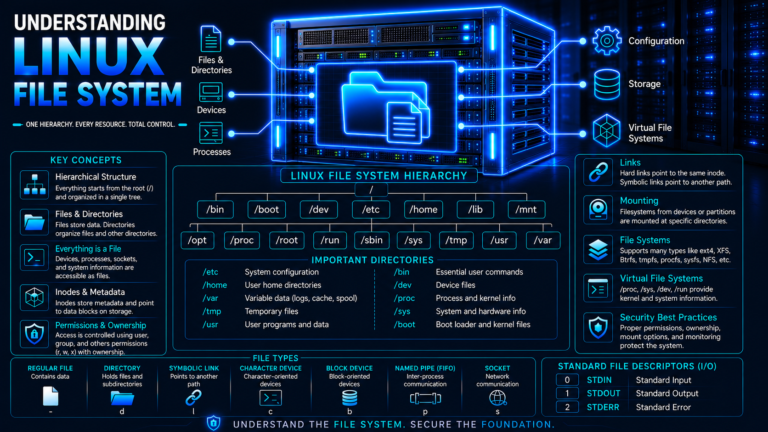
Linux uses a permission model to control who can access files and directories and what operations those users can perform. Understanding the Linux File System is important for understanding how these permissions control access to files and directories.
Permissions are assigned to three categories of users:
- Owner — the user who owns the file or directory.
- Group — users who belong to the group associated with the file or directory.
- Others — all other users who are neither the owner nor members of the associated group.
Each category can have three basic permissions:
- Read (
r) - Write (
w) - Execute (
x)
These permissions determine what a user can do with a file or directory.
Read, Write, and Execute Permissions
The read (r) permission allows a user to view the contents of a file. For a directory, read permission allows the user to view the names of entries within the directory.
The write (w) permission allows a user to modify a file. For a directory, write permission allows entries to be created, deleted, or renamed, subject to the directory’s other permissions and special permission settings.
The execute (x) permission allows a user to execute a file when it is an executable program or script. For a directory, execute permission allows a user to access entries within the directory and traverse it.
Permission Categories
Linux assigns the three basic permissions independently to the owner, group, and others.
The permission structure is represented as:
r w x        r w x        r w x
│ │ │        │ │ │        │ │ │
Owner        Group        Others
For example:
rwxr-xr--
The permission string is divided into three permission sets:
rwx    r-x    r--
 │      │      │
Owner  Group  Others
Therefore:
- Owner: read, write, execute
- Group: read, execute
- Others: read
Linux Users, Groups, and Ownership
Linux uses ownership together with permissions to determine how access to a file or directory is evaluated.
Every file or directory is associated with an owner and a group. Linux uses these identities when determining which permission set applies to a user attempting to access the resource.
A user may therefore access a resource under one of three permission categories:
- Owner
- Group
- Others
The relationship between users, groups, ownership, and permissions forms the foundation of Linux file access control.
Understanding Linux Permission Strings
The ls -l command can be used to display file ownership and permissions. It shows the permission string together with information such as the file owner and group.
For example:
alice@linux:~$ ls -l example.sh
-rwxr-xr-- 1 alice alice 1200 Aug 20 10:30 example.sh
The permission string is:
-rwxr-xr--
The first character indicates the file type:
-    Regular file
d    Directory
l    Symbolic link
The remaining nine characters represent the permissions:
-rwxr-xr--
 │  │ │ │
 │  │ │ └── Others
 │  │ └──── Group
 │  └────── Owner
 └───────── File type
For this example:
Owner  → rwx
Group  → r-x
Others → r--
Permissions for Files and Directories
The meaning of read, write, and execute permissions differs depending on whether the resource is a regular file or a directory.
Permissions on Files
For a regular file:
- Read (
r) allows the contents of the file to be viewed. - Write (
w) allows the file to be modified. - Execute (
x) allows the file to be executed when it is an executable program or script.
Permissions on Directories
For a directory:
- Read (
r) allows the names of entries within the directory to be viewed. - Write (
w) allows entries to be created, deleted, or renamed, subject to the directory’s other permissions and special permission settings. - Execute (
x) allows the directory to be traversed and entries within it to be accessed.
Directory execute permission therefore has a different meaning from execute permission on a regular file.
Numeric Permission Representation
Linux also represents permissions using numeric values. This notation provides a compact way to specify combinations of read, write, and execute permissions.
Each permission is assigned a numeric value:
| Permission | Symbol | Value |
|---|---|---|
| Read | r | 4 |
| Write | w | 2 |
| Execute | x | 1 |
The three permission positions are assigned powers of 2 from right to left:
r    w    x
│    │    │
2²   2¹   2⁰
│    │    │
4    2    1
Therefore:
r = 2² = 4
w = 2¹ = 2
x = 2⁰ = 1
The values are combined for each permission category.
Permission Value Combinations
For example, 7 represents read, write, and execute because:
4 + 2 + 1 = 7
A permission value of 5 represents read and execute because:
4 + 1 = 5
The possible combinations are:
| Numeric Value | Symbol | Calculation | Permissions |
|---|---|---|---|
0 | --- | 0 | None |
1 | --x | 1 | Execute |
2 | -w- | 2 | Write |
3 | -wx | 2 + 1 | Write, Execute |
4 | r-- | 4 | Read |
5 | r-x | 4 + 1 | Read, Execute |
6 | rw- | 4 + 2 | Read, Write |
7 | rwx | 4 + 2 + 1 | Read, Write, Execute |
Combining Numeric Permissions
A three-digit numeric permission value represents the permissions of the owner, group, and others, respectively.
The three positions have different place values:
Hundreds    Tens    Ones
 Owner    Group   Others
   7        7       7
The positions are therefore:
Owner  → × 100
Group  → × 10
Others → × 1
For example:
777
The first digit, 7, belongs to the owner:
7 × 100 = 700
The second digit belongs to the group:
7 × 10 = 70
The third digit belongs to others:
7 × 1 = 7
Therefore:
700 + 70 + 7 = 777
The permission value 777 represents:
Owner  → 7 → rwx
Group  → 7 → rwx
Others → 7 → rwx
Therefore:
777 = rwxrwxrwx
Similarly:
755
represents:
7 × 100 = 700    → Owner
5 × 10  = 50     → Group
5 × 1   = 5      → Others
Therefore:
700 + 50 + 5 = 755
The corresponding permissions are:
Owner  → 7 → rwx
Group  → 5 → r-x
Others → 5 → r-x
Therefore:
755 = rwxr-xr-x
Another common example is:
644
which represents:
Owner  → 6 → rw-
Group  → 4 → r--
Others → 4 → r--
Therefore:
644 = rw-r--r--
Assigning Numeric Permissions
The chmod command can be used to assign numeric permissions to a file or directory.
For example, the following command assigns 755 permissions to example.sh:
alice@linux:~$ chmod 755 example.sh
This results in:
Owner  → rwx
Group  → r-x
Others → r-x
Numeric permissions provide a compact representation of the complete permission set.
Changing Linux Permissions
The chmod command is used to change the permissions assigned to a file or directory.
Numeric notation can be used to specify the complete permission set.
For example:
alice@linux:~$ chmod 755 example.sh
The resulting permission assignment is:
Owner  → rwx
Group  → r-x
Others → r-x
Special Permissions
Linux provides three special permission mechanisms in addition to the standard read, write, and execute permissions:
- SUID (Set User ID)
- SGID (Set Group ID)
- Sticky Bit
These special permissions use an additional numeric position before the owner, group, and others permissions.
The special permission values are:
| Special Permission | Binary Value | Numeric Value | Symbol |
|---|---|---|---|
| SUID (Set User ID) | 2² = 4 | 4000 | s / S |
| SGID (Set Group ID) | 2¹ = 2 | 2000 | s / S |
| Sticky Bit | 2⁰ = 1 | 1000 | t / T |
The special permission value is represented separately from the three regular permission digits.
For example:
4777
can be understood as:
4    7    7    7
│    │    │    │
│    │    │    └── Others
│    │    └─────── Group
│    └──────────── Owner
└───────────────── Special permission
Here:
4    = SUID
777  = rwxrwxrwx
Therefore:
4777 = SUID + rwxrwxrwx
The special permission value can also contain combinations of SUID, SGID, and the Sticky Bit:
| Special Bit Value | Special Permission | Four-Digit Value |
|---|---|---|
0 | None | 0000 |
1 | Sticky Bit | 1000 |
2 | SGID | 2000 |
3 | SGID + Sticky Bit | 3000 |
4 | SUID | 4000 |
5 | SUID + Sticky Bit | 5000 |
6 | SUID + SGID | 6000 |
7 | SUID + SGID + Sticky Bit | 7000 |
SUID
SUID, or Set User ID, is a special permission mechanism that causes an executable to operate with the effective user privileges associated with its owner.
For example, a root-owned SUID executable can operate with the effective privileges of root when executed by an ordinary user.
SUID can be represented in numeric notation using:
4000
The 4 represents SUID, while the remaining three digits represent the owner, group, and others permissions.
SUID files can be identified using the find command:
alice@linux:~$ find / -perm -4000 -type f 2>/dev/null
SUID in Permission Strings
A typical SUID permission string may look like:
-rwsr-xr-x
Here, the s appears in the owner’s execute position.
The s does not create a separate position. It uses the execute position to represent SUID together with the owner’s execute permission.
Therefore:
x → Execute permission
s → SUID + Execute permission
S → SUID without Execute permission
For example:
-rwsr-xr-x
   ↑
   SUID + owner execute
If SUID is set but the owner’s execute permission is not set:
-rwSr-xr-x
The uppercase S indicates that SUID is set while execute permission is not set.
SGID
SGID, or Set Group ID, is a special permission mechanism that causes an executable to operate with the effective group privileges associated with its group owner.
SGID can be represented numerically using:
2000
The following command searches for regular files with the SGID bit set:
alice@linux:~$ find / -perm -2000 -type f 2>/dev/null
SGID in Permission Strings
A permission string for an SGID executable may look like:
-rwxr-sr-x
Here, the s appears in the group’s execute position.
As with SUID, the s uses the existing execute position:
x → Execute permission
s → SGID + Execute permission
S → SGID without Execute permission
For example:
-rwxr-sr-x
      ↑
      SGID + group execute
If SGID is set without the group’s execute permission:
-rwxr-Sr-x
The uppercase S indicates that SGID is set but group execute permission is not set.
SGID on Directories
SGID has a different behavior when applied to directories.
On a directory, SGID causes newly created files and subdirectories to inherit the directory’s group ownership.
Sticky Bit
The Sticky Bit is commonly used on shared writable directories.
A typical example is:
/tmp
where multiple users may need to create temporary files.
The Sticky Bit restricts the ability of users to remove or rename entries belonging to other users within such a directory.
The permissions of /tmp can be viewed with:
alice@linux:~$ ls -ld /tmp
A typical result is:
drwxrwxrwt 10 root root 4096 Aug 20 09:30 /tmp
The t appears in the others’ execute position.
As with SUID and SGID, the Sticky Bit uses the existing execute position rather than creating a separate permission position:
x → Execute permission
t → Sticky Bit + Execute permission
T → Sticky Bit without Execute permission
For example:
drwxrwxrwt
        ↑
        Sticky Bit + others execute
If the Sticky Bit is set without others’ execute permission:
drwxrwxrwT
the uppercase T indicates that the Sticky Bit is set but execute permission for others is not set.
Linux Permissions and Security
Linux permissions form an important security boundary between users and system resources.
The traditional owner, group, and others model provides the foundation for controlling access to files and directories. Special permissions such as SUID, SGID, and the Sticky Bit extend this model by providing additional mechanisms for controlling how resources are accessed and used.
Permission configurations should be understood in their full context. Ownership, assigned permissions, the type of resource, and how that resource is used all influence the access that a user or process can have.
This understanding is important when administering Linux systems and evaluating how permissions affect the overall security of system resources.
Conclusion
Linux permissions provide the foundation for controlling access to files and directories through the owner, group, and others model and the read, write, and execute permissions. Understanding permission strings, numeric permissions, and special permissions such as SUID, SGID, and the Sticky Bit provides a clear foundation for understanding how Linux controls access to system resources.
References
Linux man-pages – chmod(1) — Linux manual page
Documents Linux file mode bits, symbolic and numeric permission notation, SUID, SGID, and the Sticky Bit.
Linux man-pages – getfacl(1) — Linux manual page
Documents the getfacl utility and the display of Access Control Lists for files and directories.
Linux man-pages – acl(5) — Linux manual page
Describes Linux Access Control Lists and their relationship to the traditional owner, group, and others permission model.