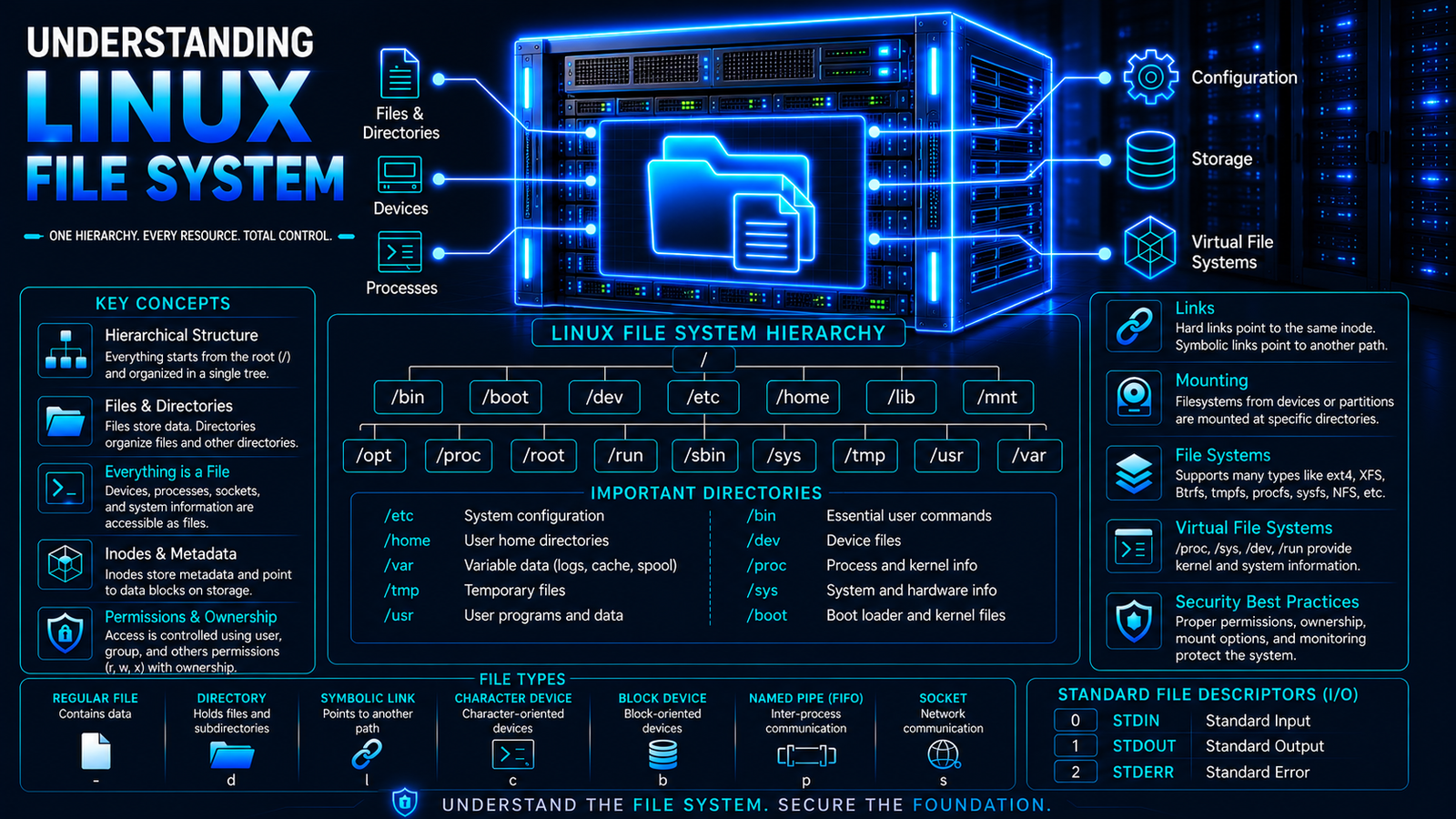
Understanding Linux File System
Introduction
The Linux file system is the structure Linux uses to organize, store, access, and manage files and directories. Unlike operating systems that organize storage around drive letters, Linux presents storage through a single hierarchical directory tree that begins at the root directory, represented by /.
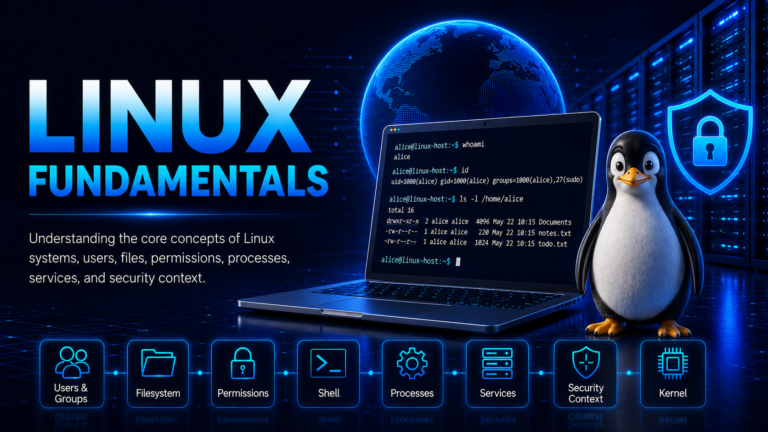
Understanding the Linux file system is fundamental to understanding how a Linux system operates. It is also a core component of Linux Fundamentals, providing the foundation for understanding how Linux organizes system resources, applications, configuration files, and user data.
Configuration files, user data, applications, libraries, device interfaces, logs, temporary information, and operating-system data are placed within different parts of this hierarchy. This organization provides a consistent way for users, applications, system administrators, and system tools to locate and interact with resources.
The Filesystem Hierarchy Standard (FHS) provides conventions for the placement of files and directories in Unix-like systems. Its purpose is to improve interoperability and make file locations predictable for software, administrators, and users.
The Linux file system is also an important security boundary. File ownership, permissions, links, mount points, special file systems, and metadata all influence how users and processes can access system resources.
What Is the Linux File System?
Definition of a File System
A file system is a method used by an operating system to organize and manage data stored on a storage device. It defines how files and directories are represented, how data is located, how metadata is maintained, and how access to stored information is controlled.
A storage device such as an SSD or hard disk provides physical or logical storage capacity, while a file system provides the structure through which the operating system uses that capacity.
Examples of Linux-supported file systems include ext4, XFS, Btrfs, and several virtual and network-oriented file systems.
Role of the File System in Linux
The Linux file system provides mechanisms for:
- Organizing files and directories
- Storing file data
- Maintaining file metadata
- Managing ownership and permissions
- Locating files
- Managing storage space
- Representing devices and other system resources
- Supporting application access to files
- Connecting different storage systems into a common directory hierarchy
The file system therefore sits between applications and the underlying storage and operating-system mechanisms.
Files and Directories in Linux
A file represents stored information or, in some cases, an interface to a system resource.
A directory is a special type of file system object that contains references to files and other directories.
Linux treats many resources through file-oriented interfaces. This includes ordinary data files as well as devices and kernel-related interfaces.
Why Linux Uses a Hierarchical File System
Linux organizes directories as a hierarchy beginning at /, known as the root directory.
A simplified hierarchy can be represented as:
/
├── boot
├── dev
├── etc
├── home
├── opt
├── proc
├── root
├── run
├── srv
├── sys
├── tmp
├── usr
└── var
This structure separates different types of system and user information into logical locations.
Linux File System Hierarchy
The Root Directory /
The / directory is the starting point of the Linux file system hierarchy.
Every absolute path begins from /.
For example:
/home/alice/Documents/report.txtHere:
/is the root directory./homecontains user home directories./home/aliceis Alice’s home directory./home/alice/Documentsis a subdirectory.report.txtis the file.
The pwd command is used to display the current working directory.
alice@linux:~$ pwd
/home/alice
Directory Tree Structure
Linux directories can contain other directories, creating a tree structure.
The ls command is used to list the contents of a directory.
alice@linux:~$ ls
Documents  Downloads  Pictures  project
The tree command, when installed, can provide a visual representation of a directory hierarchy.
alice@linux:~$ tree project
project
├── config
│   └── app.conf
├── logs
│   └── application.log
└── notes.txt

2 directories, 3 files
Absolute and Relative Paths
An absolute path starts from /.
/home/alice/project/notes.txtA relative path starts from the current working directory.
project/notes.txtThe cd command is used to change the current working directory.
alice@linux:~$ cd project
alice@linux:~/project$ pwd
/home/alice/project
The special directory . represents the current directory, while .. represents the parent directory.
alice@linux:~/project$ cd ..
alice@linux:~$ pwd
/home/alice
Navigating the File System
Common commands used for navigation include:
pwd— display the current directoryls— list directory contentscd— change directoryfind— search for files and directories
These commands provide the basic interface for navigating the Linux hierarchy.
Linux Standard Directories
The Filesystem Hierarchy Standard defines conventions for important directories within the Linux file system. Distribution implementations can differ in details, and some directories may be symbolic links or managed differently, but the underlying organizational concepts remain important.
/bin
Traditionally, /bin contains essential user command binaries.
On many contemporary Linux distributions, /bin may be a symbolic link to /usr/bin.
alice@linux:~$ ls -ld /bin
lrwxrwxrwx 1 root root 7 Aug 24 18:10 /bin -> usr/bin
/boot
The /boot directory contains static files associated with the system boot process, such as kernels and bootloader-related files.
alice@linux:~$ ls -lh /boot
total 142M
-rw-r--r-- 1 root root  14M Aug 24 18:10 vmlinuz-6.8.0
-rw-r--r-- 1 root root  12M Aug 24 18:10 initrd.img-6.8.0
drwx------ 5 root root 4.0K Aug 24 18:10 grub
/dev
/dev contains device files and interfaces representing devices.
Examples include:
/dev/null
/dev/zero
/dev/random
/dev/sda
The ls command can be used to display specific device entries and their associated file types, permissions, ownership, and device numbers.
alice@linux:~$ ls -l /dev/null /dev/zero
crw-rw-rw- 1 root root 1, 3 Aug 25 09:00 /dev/null
crw-rw-rw- 1 root root 1, 5 Aug 25 09:00 /dev/zero
/etc
/etc contains host-specific system configuration.
Examples include configuration files for networking, services, authentication, users, and other system components.
alice@linux:~$ ls /etc | head
adduser.conf
apt
bash.bashrc
cron.d
fstab
hostname
hosts
passwd
ssh
systemd
Configuration files in /etc are particularly important from a security perspective because unauthorized modification can change system behavior.
/home
/home normally contains the home directories of ordinary users.
alice@linux:~$ ls -la /home
total 16
drwxr-xr-x  4 root  root  4096 Aug 25 09:00 .
drwxr-xr-x 20 root  root  4096 Aug 25 09:00 ..
drwx------ 12 alice alice 4096 Aug 25 09:42 alice
drwx------ 10 user1 user1 4096 Aug 25 09:35 user1
/lib
/lib traditionally contains essential shared libraries and kernel modules.
On systems using a merged /usr layout, /lib may be a symbolic link into /usr.
/media
/media provides a conventional location for mounting removable media.
/mnt
/mnt is traditionally used as a mount point for temporarily mounted file systems.
/opt
/opt is intended for add-on application software packages.
/proc
/proc is a virtual file system that exposes process and kernel information.
For example:
alice@linux:~$ ls /proc | head
1
2
3
4
5
6
7
8
9
10
Many numeric directories correspond to process IDs.
/root
/root is the home directory traditionally associated with the root user.
It is different from /, which is the root of the entire file system hierarchy.
/run
/run contains run-time variable data associated with the running system.
Examples include process identifiers, sockets, and other transient run-time information.
/sbin
/sbin traditionally contains system administration binaries.
As with /bin, many distributions use a merged /usr arrangement in which /sbin may be a symbolic link.
/srv
/srv is intended for data associated with services provided by the system.
/sys
/sys is a virtual file system exposing information about devices, drivers, and kernel objects.
/tmp
/tmp provides a location for temporary files.
The FHS distinguishes temporary files in /tmp from data that may need to persist across reboots, with /var/tmp intended for temporary data with different persistence expectations.
/usr
/usr contains a large portion of user-space programs, libraries, documentation, and other system resources.
Common subdirectories include:
/usr/bin
/usr/lib
/usr/local
/usr/sbin
/usr/share
/var
/var contains variable data such as logs, caches, application state, and spool data.
For example:
alice@linux:~$ ls /var
cache  lib  local  log  mail  opt  run  spool  tmp
/var/log is particularly important for system administration and security monitoring.
Types of Files in Linux
Linux identifies several types of file system objects.
Regular Files
Regular files contain ordinary user or application data.
Examples include:
report.txt
database.db
application.conf
image.jpg
The file command is used to identify the type of a file.
alice@linux:~$ file project/notes.txt
project/notes.txt: ASCII text
Directories
Directories organize files and other directories.
A directory can be identified by the d at the beginning of its permission representation.
alice@linux:~$ ls -ld project
drwxrwxr-x 2 alice alice 4096 Aug 25 09:45 project
Symbolic Links
A symbolic link is a file system object that references another path.
alice@linux:~$ ls -l notes-link.txt
lrwxrwxrwx 1 alice alice 17 Aug 25 09:50 notes-link.txt -> project/notes.txt
Hard Links
A hard link provides another directory entry referring to the same underlying inode.
alice@linux:~$ ls -li project/
131105 -rw-rw-r-- 2 alice alice 0 Aug 25 09:46 notes-hardlink.txt
131105 -rw-rw-r-- 2 alice alice 0 Aug 25 09:46 notes.txt
Both names reference inode 131105.
Character Devices
Character devices provide an interface for devices that process data as a stream of characters.
Examples include terminal devices.
alice@linux:~$ ls -l /dev/tty
crw-rw-rw- 1 root tty 5, 0 Aug 25 09:00 /dev/tty
Block Devices
Block devices provide access to storage devices in block-oriented form.
alice@linux:~$ ls -l /dev/sda
brw-rw---- 1 root disk 8, 0 Aug 25 09:00 /dev/sda
Named Pipes
Named pipes, also called FIFOs, provide an inter-process communication mechanism through the file system.
Sockets
Unix domain sockets provide local inter-process communication and can appear as file system objects.
Linux File System Metadata
File Names
A directory entry associates a name with a file system object. The name is an important part of how users and applications locate files.
Linux file systems are generally case-sensitive, meaning uppercase and lowercase characters are treated as different characters in file names. For example, Notes.txt and notes.txt can represent two different files within the same directory.
alice@linux:~$ touch Notes.txt notes.txt
alice@linux:~$ ls
Notes.txt  notes.txt
This distinction is important when creating, accessing, scripting, and managing files in Linux.
File Size
The size describes the amount of file data.
alice@linux:~$ ls -lh project/notes.txt
-rw-r----- 2 alice alice 0 Aug 25 09:46 project/notes.txt
Ownership
Files have an associated user ID and group ID.
alice@linux:~$ ls -l project/notes.txt
-rw-r----- 2 alice alice 0 Aug 25 09:46 project/notes.txt
Here, alice is both the owner and group.
Permissions
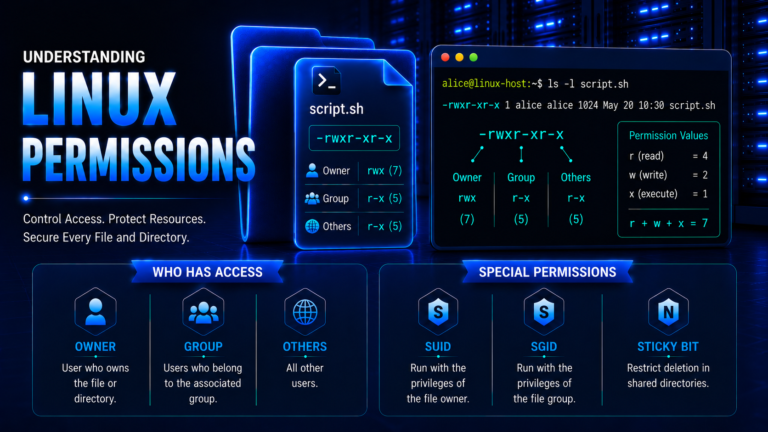
Linux permissions determine whether the owner, group, and others have read, write, or execute access.
For example:
-rw-r-----can be interpreted as:
Owner:  read, write
Group:  read
Others: no permissions
Timestamps
Linux maintains several important timestamps.
Access Time
The access time records when file content was last accessed, subject to file system and mount configuration.
Modification Time
The modification time records when the file’s contents were last modified.
Change Time
The change time records when the file’s metadata changed.
The stat command displays these values.
alice@linux:~$ stat project/notes.txt
  File: project/notes.txt
  Size: 0          Blocks: 0          IO Block: 4096   regular empty file
Device: 8,1        Inode: 131105      Links: 2
Access: (0640/-rw-r-----)  Uid: (1000/alice)   Gid: (1000/alice)
Access: 2026-08-25 09:46:12.000000000 +0530
Modify: 2026-08-25 09:46:12.000000000 +0530
Change: 2026-08-25 09:50:03.000000000 +0530
Inode Number
Every file system object represented by an inode has an inode number that identifies it within that file system.
Linux inode metadata includes information such as file type, permissions, ownership, timestamps, and link count.
File Type Information
The first character displayed by ls -l identifies the type of file system object.
-   Regular file
d   Directory
l   Symbolic link
c   Character device
b   Block device
p   Named pipe (FIFO)
s   Socket
For example:
alice@linux:~$ ls -l /dev/null
crw-rw-rw- 1 root root 1, 3 Aug 25 09:00 /dev/null
The first character, c, identifies /dev/null as a character device.
Inodes and File System Structures
What Is an Inode?
An inode is a file system data structure containing metadata about a file system object.
An inode does not normally contain the file name itself. Directory entries associate names with inode numbers.
The inode records information such as ownership, permissions, timestamps, file type, and link count.
Information Stored in an Inode
Important inode information includes:
- File type
- Permissions
- User ID
- Group ID
- File size
- Timestamps
- Link count
- File system-specific references to data
Inodes and File Names
A file name and an inode are related but are not the same thing.
For example:
notes.txt
     |
     v
 inode 131105
     |
     v
 file data
A second hard link can create another name that references the same inode.
Inodes and Data Blocks
The inode provides the metadata and references required to locate the file’s stored data.
The exact implementation differs between file systems, but the conceptual separation between metadata and file data is fundamental.
Understanding File Links
A hard link creates another directory entry associated with the same inode.
A symbolic link instead contains a path referring to another file system location.
Inode Exhaustion
A file system can run out of inodes even when storage capacity remains.
The df -i command is used to examine inode usage.
alice@linux:~$ df -i
Filesystem       Inodes  IUsed   IFree IUse% Mounted on
/dev/sda2       2621440  84521 2536919    4% /
tmpfs            491520     38  491482    1% /run
/dev/sda1         65536    312   65224    1% /boot
A system that creates extremely large numbers of small files can encounter inode exhaustion before exhausting its data capacity.
Linux File System Permissions
User, Group, and Other
Linux traditionally evaluates basic file permissions against three classes:
- User — the file owner
- Group — members of the associated group
- Other — users who are neither the owner nor members of the associated group
Read, Write, and Execute Permissions
The basic permissions are:
| Permission | File | Directory |
|---|---|---|
| Read | Read file contents | List directory entries |
| Write | Modify file contents | Create, remove, or rename entries, subject to other controls |
| Execute | Execute a program | Traverse/access the directory |
Permission Representation
Consider:
-rwxr-x---This means:
Owner:  rwx
Group:  r-x
Others: ---
The numeric representation is:
750The ls -l command displays this information.
alice@linux:~$ ls -l project/script.sh
-rwxr-x--- 1 alice alice 1240 Aug 25 09:55 project/script.sh
Directory Permissions
Directory permissions control what users can do with directory entries and whether they can traverse the directory.
alice@linux:~$ ls -ld project
drwxr-x--- 2 alice developers 4096 Aug 25 09:45 project
Special Permissions
Linux provides special permission bits in addition to ordinary read, write, and execute permissions.
Set User ID
The set-user-ID bit can cause an executable program to run with the effective user ID associated with the file, subject to system security rules.
Set Group ID
The set-group-ID bit has special behavior for executable files and directories.
For directories, newly created files can inherit the directory’s group ownership.
Sticky Bit
The sticky bit on a directory restricts deletion or renaming of entries so that normally only the entry owner, directory owner, or a privileged process can perform those operations.
A common example is /tmp.
alice@linux:~$ ls -ld /tmp
drwxrwxrwt 12 root root 4096 Aug 25 09:00 /tmp
The t at the end indicates the sticky bit.
Default Permissions and umask
When a new file or directory is created, Linux starts with the permission mode requested by the application or process. The process’s umask then removes selected permission bits from that requested mode.
For example, a common umask value is:
alice@linux:~$ umask
0022
The umask does not directly assign permissions. Instead, it specifies which permission bits should be masked when a new file system object is created.
For both the file and directory examples, assume the application requests a creation mode of 0777 and the umask is 0022:
Regular file:
0777
-0022
-----
0755
Resulting permissions:
-rwxr-xr-xDirectory:
0777
-0022
-----
0755
Resulting permissions:
drwxr-xr-xHowever, in actual Linux file creation, applications commonly request different initial modes for regular files and directories. Therefore, the examples above are useful for demonstrating the masking concept, rather than representing the typical creation mode of every application.
The actual permissions depend on the creation mode requested by the application and the process’s umask.
Linux File Ownership
User Ownership
Every file has an associated owner identified by a user ID.
Group Ownership
A file also has an associated group.
Groups allow permissions to be shared among multiple users without granting access to everyone.
Root Ownership
The root account commonly owns critical operating-system files and directories.
For example:
alice@linux:~$ ls -l /etc/passwd
-rw-r--r-- 1 root root 2847 Aug 25 09:00 /etc/passwd
Changing File Ownership
The chown command is used to change ownership. Administrative privileges are normally required when changing ownership of system files.
alice@linux:~$ sudo chown alice:alice project/notes.txt
alice@linux:~$ ls -l project/notes.txt
-rw-r----- 2 alice alice 0 Aug 25 09:46 project/notes.txt
Changing Group Ownership
The chgrp command changes the group associated with a file.
alice@linux:~$ sudo chgrp developers project/notes.txt
alice@linux:~$ ls -l project/notes.txt
-rw-r----- 2 alice developers 0 Aug 25 09:46 project/notes.txt
Ownership and Access Control
Ownership works together with permissions to determine whether a process can access a file.
This makes ownership an important component of Linux security.
File Links in Linux
What Is a Link?
A link provides a way to reference a file system object through another name or path.
Linux primarily uses two forms:
- Hard links
- Symbolic links
Hard Links
The ln command without -s creates a hard link.
alice@linux:~$ ln project/notes.txt project/notes-hardlink.txt
alice@linux:~$ ls -li project/
131105 -rw-r----- 2 alice alice 0 Aug 25 09:46 notes-hardlink.txt
131105 -rw-r----- 2 alice alice 0 Aug 25 09:46 notes.txt
Both names point to the same inode.
Symbolic Links
The ln -s command creates a symbolic link.
alice@linux:~$ ln -s project/notes.txt notes-link.txt
alice@linux:~$ ls -l notes-link.txt
lrwxrwxrwx 1 alice alice 17 Aug 25 09:50 notes-link.txt -> project/notes.txt
Hard Links vs Symbolic Links
A hard link:
- References the same inode
- Normally cannot cross file system boundaries
- Remains associated with the underlying file data
A symbolic link:
- References a path
- Can cross file system boundaries
- Can become broken if the referenced path no longer exists
Link Count and Inodes
The inode link count indicates the number of hard links associated with the inode.
alice@linux:~$ stat project/notes.txt | grep Links
Device: 8,1   Inode: 131105   Links: 2
Common Uses of Symbolic Links
Symbolic links are commonly used for:
- Alternate paths
- Application configuration
- Versioned software directories
- Compatibility paths
- Simplifying access to frequently used locations
Linux File System Mounting
What Is Mounting?
Mounting is the process of attaching a file system to a directory within the Linux file system hierarchy.
Linux presents accessible files through a single directory tree rooted at /, even when the underlying file systems are located on different devices or are provided through virtual or network-based mechanisms.
Mount Points
A mount point is a directory used as the location where a file system is attached to the existing Linux directory hierarchy.
For example:
/
├── home
├── var
└── data
    └── application files
If a separate file system is mounted on /data, the contents of that file system become accessible through /data.
Mounting File Systems
The mount command is used to attach a file system to a directory. Its standard form specifies the source device, the target mount point, and optionally the file system type.
In this example, /dev/sdb1 represents an ext4 file system and /mnt/data is the mount point.
alice@linux:~$ sudo mount -t ext4 /dev/sdb1 /mnt/data
alice@linux:~$ mount | grep /mnt/data
/dev/sdb1 on /mnt/data type ext4 (rw,relatime)
The mount command without arguments displays the file systems currently mounted on the system.
alice@linux:~$ mount
/dev/sda2 on / type ext4 (rw,relatime)
/dev/sda1 on /boot type ext4 (rw,relatime)
/dev/sdb1 on /mnt/data type ext4 (rw,relatime)
proc on /proc type proc (rw,nosuid,nodev,noexec,relatime)
sysfs on /sys type sysfs (rw,nosuid,nodev,noexec,relatime)
tmpfs on /run type tmpfs (rw,nosuid,nodev,relatime)
Unmounting File Systems
The umount command is used to detach a mounted file system from the Linux directory hierarchy.
alice@linux:~$ sudo umount /mnt/data
alice@linux:~$ mount | grep /mnt/data
No output indicates that /mnt/data is no longer listed among the mounted file systems.
A file system should be unmounted carefully, particularly when processes are still using files on it.
/etc/fstab
/etc/fstab contains static information describing file systems that Linux can mount. It allows administrators to define file systems, their mount points, file system types, and mount options in a persistent configuration.
A simplified entry can look like this:
UUID=8a2f1c40-9e1d-4b92-a2c1-1b8a9e44f100 /data ext4 defaults 0 2Here:
UUID=...identifies the file system./dataspecifies the mount point.ext4specifies the file system type.defaultsspecifies a set of standard mount options.0specifies the dump-related field.2specifies the file system check order.
Using a UUID rather than relying only on a device name can provide a more stable way of identifying a file system.
Automatic File System Mounting
File systems defined in /etc/fstab can be mounted using the mount -a command, which mounts applicable entries while excluding entries marked with the noauto option.
alice@linux:~$ sudo mount -a
alice@linux:~$ mount | grep /data
/dev/sdb1 on /data type ext4 (rw,relatime)
On many Linux systems, system startup and mounting are also integrated with system management components such as systemd.
Mount Options
Mount options control how a file system is accessed and can influence both functionality and security.
For example, a file system can be mounted as read-only:
alice@linux:~$ sudo mount -o ro /dev/sdb1 /mnt/data
alice@linux:~$ mount | grep /mnt/data
/dev/sdb1 on /mnt/data type ext4 (ro,relatime)
The ro option makes the mount read-only. Other security-relevant options include nosuid, nodev, and noexec, although their suitability depends on the purpose of the file system.
Mount configuration should therefore be considered part of Linux system security, particularly for file systems containing user-controlled or untrusted data.
File System Types in Linux
Native Linux File Systems
Linux supports multiple file system implementations.
ext4
ext4 is a widely used general-purpose Linux file system.
It provides journaling, large file and file system support, and other features suitable for general workloads.
XFS
XFS is a high-performance journaling file system designed for scalability and large file systems.
Btrfs
Btrfs is a copy-on-write file system that provides features such as snapshots, checksums, and subvolumes.
Memory-Based File Systems
tmpfs
tmpfs stores data primarily in memory, with possible use of swap, and is commonly used for temporary or runtime data.
alice@linux:~$ df -h /run
Filesystem      Size  Used Avail Use% Mounted on
tmpfs           1.9G  1.2M  1.9G   1% /run
Virtual and Kernel File Systems
procfs
procfs provides process and kernel-related information through /proc.
sysfs
sysfs exposes information about devices, drivers, and kernel objects through /sys.
devtmpfs
devtmpfs provides device nodes under /dev and is integrated with Linux device management.
Network File Systems
NFS
Network File System allows file systems to be accessed across a network.
SMB/CIFS
SMB/CIFS provides file and resource sharing commonly associated with network environments and interoperability with Windows systems.
File System Selection Considerations
File system selection can depend on:
- Workload
- Storage capacity
- Performance requirements
- Reliability requirements
- Snapshot requirements
- Backup strategy
- Application compatibility
- Administrative requirements
Linux Virtual File System
What Is the Virtual File System?
The Virtual File System, commonly called VFS, provides an abstraction layer between applications and specific file system implementations.
An application can use common file operations without needing to understand the internal implementation of every file system.
Purpose of the VFS Layer
The VFS enables Linux to provide common interfaces across different file systems.
An application can use operations such as opening, reading, writing, and closing files while the underlying file system handles the implementation details.
VFS and File System Abstraction
The VFS allows different file systems to coexist within the same Linux system.
For example:
/
├── home        → ext4
├── data        → XFS
├── proc        → procfs
├── sys         → sysfs
└── run         → tmpfs
The application does not need a completely different file access interface for each one.
VFS and System Calls
Applications interact with files through system calls and library interfaces.
Common operations include:
open()read()write()close()stat()
VFS Objects
Superblock
The superblock represents information about a mounted file system.
Inode
The inode represents metadata associated with a file system object.
Dentry
A dentry represents a directory entry and assists with path-name resolution.
File Object
A file object represents an open file from the kernel’s perspective and contains information associated with the open instance.
Linux Files and File Descriptors
What Is a File Descriptor?
A file descriptor is a process-specific integer used by Linux to identify an open file or other I/O resource.
Standard File Descriptors
Standard Input
Standard input normally uses descriptor 0.
Standard Output
Standard output normally uses descriptor 1.
Standard Error
Standard error normally uses descriptor 2.
A shell can display these descriptors through /proc.
alice@linux:~$ ls -l /proc/$$/fd
lrwx------ 1 alice alice 64 Aug 25 10:02 0 -> /dev/pts/0
lrwx------ 1 alice alice 64 Aug 25 10:02 1 -> /dev/pts/0
lrwx------ 1 alice alice 64 Aug 25 10:02 2 -> /dev/pts/0
File Descriptors and Processes
Each process has its own file descriptor table.
Applications use descriptors to interact with files, terminals, pipes, sockets, and other I/O resources.
Open Files and File Descriptors
Opening a file creates a kernel-managed open-file context associated with a process’s file descriptor.
This is why the same file can be opened multiple times by different processes or multiple times by the same process.
Linux File System and Storage
Disk Partitions
A physical storage device can be divided into partitions.
For example:
/dev/sda
├── /dev/sda1
└── /dev/sda2
Physical Disks and Block Devices
The lsblk command displays block devices and their relationships.
alice@linux:~$ lsblk
NAME   MAJ:MIN RM  SIZE RO TYPE MOUNTPOINTS
sda      8:0    0   40G  0 disk
├─sda1   8:1    0    1G  0 part /boot
└─sda2   8:2    0   39G  0 part /
sr0     11:0    1  1024M 0 rom
Logical Volumes
Logical volume management can provide an abstraction between physical storage and file systems.
This can simplify storage allocation, resizing, and management.
File Systems and Storage Devices
A device or partition provides storage capacity. A file system organizes that capacity so Linux can create and manage files.
The relationship can be summarized as:
Storage Device
      |
      v
Partition or Logical Volume
      |
      v
File System
      |
      v
Directories and Files
Disk Space and File System Capacity
The df -h command displays file system capacity in a human-readable format.
alice@linux:~$ df -h
Filesystem      Size  Used Avail Use% Mounted on
/dev/sda2        40G   12G   26G  32% /
tmpfs           1.9G  1.2M  1.9G   1% /run
/dev/sda1       976M  128M  782M  15% /boot
Inodes and Storage Capacity
Storage capacity and inode availability are separate resources.
A file system can have available storage space while having very few free inodes.
Linux File System Management
Creating Files and Directories
The mkdir command creates directories.
alice@linux:~$ mkdir project
alice@linux:~$ ls -ld project
drwxrwxr-x 2 alice alice 4096 Aug 25 09:45 project
The touch command creates an empty file when the specified file does not exist.
alice@linux:~$ touch project/notes.txt
alice@linux:~$ ls -l project/notes.txt
-rw-rw-r-- 1 alice alice 0 Aug 25 09:46 project/notes.txt
Copying Files
The cp command copies files or directories.
alice@linux:~$ cp project/notes.txt project/notes-backup.txt
alice@linux:~$ ls -l project/
total 0
-rw-rw-r-- 1 alice alice 0 Aug 25 10:05 notes-backup.txt
-rw-rw-r-- 1 alice alice 0 Aug 25 09:46 notes.txt
Moving and Renaming Files
The mv command moves or renames files and directories.
alice@linux:~$ mv project/notes-backup.txt project/archive.txt
alice@linux:~$ ls project/
archive.txt  notes.txt
Removing Files and Directories
The rm command is used to remove files.
alice@linux:~$ rm project/archive.txt
alice@linux:~$ ls project/
notes.txt
To remove a directory, the directory must normally be empty when using rmdir.
alice@linux:~$ rmdir project/archiveThe rm command can remove directories recursively when used with the -r option. This removes the directory and its contents, so it should be used carefully.
alice@linux:~$ rm -r project/archive
alice@linux:~$ ls project/
notes.txt
Viewing File Information
The ls, file, and stat commands provide progressively more detailed information about files.
alice@linux:~$ ls -l project/notes.txt
-rw-r----- 2 alice alice 0 Aug 25 09:46 project/notes.txt

alice@linux:~$ file project/notes.txt
project/notes.txt: empty
Searching for Files
The find command can search directory trees.
alice@linux:~$ find /home/alice -name "*.conf"
/home/alice/project/app.conf
/home/alice/project/database.conf
Managing Disk Usage
The du command is used to estimate space used by files and directories.
alice@linux:~$ du -sh /home/alice
2.4G    /home/alice
Managing File Systems
Administrative tools can be used to create, mount, inspect, resize, repair, and otherwise manage file systems.
The exact commands depend on the file system and storage architecture.
Linux Special File Systems
/proc File System
/proc is a virtual file system that exposes information about processes and kernel state.
For example:
alice@linux:~$ cat /proc/uptime
45218.73 128743.91
The first value represents system uptime in seconds, while the second represents cumulative idle time across CPUs.
/sys File System
/sys exposes kernel device and driver information.
alice@linux:~$ ls /sys
block  bus  class  dev  devices  firmware  fs  kernel  module  power
/dev File System
/dev contains device nodes and interfaces.
Examples include:
/dev/null
/dev/zero
/dev/random
/dev/tty
/run File System
/run contains run-time information associated with the currently running system.
alice@linux:~$ ls /run | head
lock
mount
systemd
user
utmp
/tmp and Temporary Storage
/tmp is used for temporary files.
Because multiple users and applications may use it, its permissions commonly include the sticky bit.
alice@linux:~$ ls -ld /tmp
drwxrwxrwt 12 root root 4096 Aug 25 09:00 /tmp
Why These File Systems Are Different
Unlike ordinary disk-based file systems, virtual file systems such as /proc and /sys primarily expose kernel-managed information rather than ordinary persistent application data.
They provide standardized interfaces between user space and kernel functionality.
File System Security
File and Directory Permissions
Permissions form one of the fundamental access-control mechanisms in Linux.
For example:
alice@linux:~$ ls -l /etc/hosts
-rw-r--r-- 1 root root 221 Aug 25 09:00 /etc/hosts
Only root has write access in this example.
Ownership and Access Control
Ownership determines which user and group are associated with the object.
Combined with permissions, it determines the basic access model.
Root Privileges
The root account has extensive privileges over the file system.
Root can normally access and modify files that ordinary users cannot.
This makes protection of privileged accounts and privileged processes critical to Linux security.
Access Control Lists
Access Control Lists, or ACLs, provide more granular permissions than the traditional owner-group-other model.
An ACL can grant specific permissions to additional users or groups.
Extended Attributes
Extended attributes allow additional metadata to be associated with files.
They can support security mechanisms and application-specific information.
File System Security Risks
Common file system security risks include:
- Excessive permissions
- Incorrect ownership
- Unauthorized modification
- Sensitive data exposure
- Insecure temporary files
- Unsafe symbolic links
- Unnecessary privileged files
- Storage exhaustion
- Inode exhaustion
- Unauthorized access to configuration or credential material
Protecting Sensitive Files and Directories
Sensitive locations should have carefully controlled permissions and ownership.
Examples include:
/etc
/etc/ssh
/etc/shadow
/root
/home
application configuration directories
application data directories
The exact permissions should reflect the function of the system rather than applying unnecessarily broad permissions.
File System Integrity and Reliability
File System Consistency
A file system maintains relationships among metadata, directories, and stored data.
Unexpected shutdowns, hardware failures, software defects, or other events can potentially leave inconsistencies.
Journaling
Journaling file systems maintain information that helps recover file system metadata after certain failures.
Journaling does not mean that every file modification is automatically protected against data loss. It primarily addresses file system consistency and recovery behavior.
File System Checks
Linux provides file system-specific utilities for checking and repairing file system structures.
The appropriate tool depends on the file system being used.
For example, ext-based file systems use fsck tooling, while XFS has its own administration utilities.
Handling File System Errors
File system errors can result from:
- Storage hardware problems
- Unexpected power loss
- Kernel or driver issues
- File system defects
- Underlying device failures
System logs and file system-specific diagnostic tools are useful when investigating such conditions.
Data Integrity Considerations
File system integrity and data integrity are related but distinct concepts.
A file system can be structurally consistent while application data is corrupted or incomplete.
Therefore, integrity requires appropriate application controls, backups, monitoring, and storage protection.
Backups and Recovery
Backups provide protection against:
- Accidental deletion
- Hardware failure
- Data corruption
- Malicious modification
- Ransomware
- Operational mistakes
A backup strategy should consider both the data and the ability to restore the required system state.
Linux File System Performance
Disk I/O
File system performance depends heavily on storage I/O.
Workloads involving many small files can behave differently from workloads involving sequential access to large files.
Caching and Buffering
Linux uses memory and kernel mechanisms to reduce unnecessary storage operations and improve performance.
Caching can significantly influence observed file system performance.
File System Performance Factors
Important factors include:
- Storage technology
- I/O pattern
- File system implementation
- File size
- Directory structure
- Available memory
- Concurrent workloads
- Mount options
- Application behavior
Large Files and Large Directories
Large files and directories can create different performance characteristics depending on the workload and file system.
Applications should use appropriate data structures and storage layouts for their workload.
Fragmentation
Fragmentation occurs when portions of a file are stored in different physical or logical locations.
The impact varies according to the file system and workload.
Monitoring File System Performance
Administrators can combine storage and operating-system tools to understand file system behavior.
The df -h command displays file system capacity and usage.
alice@linux:~$ df -h
Filesystem      Size  Used Avail Use% Mounted on
/dev/sda2        40G   12G   26G  32% /
The iostat command can provide information about storage I/O activity when the appropriate package is installed.
alice@linux:~$ iostat -xz 1 2
Linux 6.8.0 (linux)  08/25/2026

Device       r/s   w/s  rkB/s  wkB/s  await  %util
sda         12.4   8.7   842.1   516.3   2.41   4.8
The exact output varies according to the Linux distribution, installed tools, hardware, and workload.
Linux File System Threats and Attacks
Unauthorized File Access
Attackers may attempt to access files containing:
- Credentials
- Application secrets
- Configuration information
- Personal information
- Business data
- System information
Excessive permissions can make unauthorized access easier.
Permission Abuse
Incorrect permissions can expose files to users or processes that should not have access.
For example, a sensitive file with world-readable permissions can create unnecessary exposure.
Privilege Escalation Through File System Weaknesses
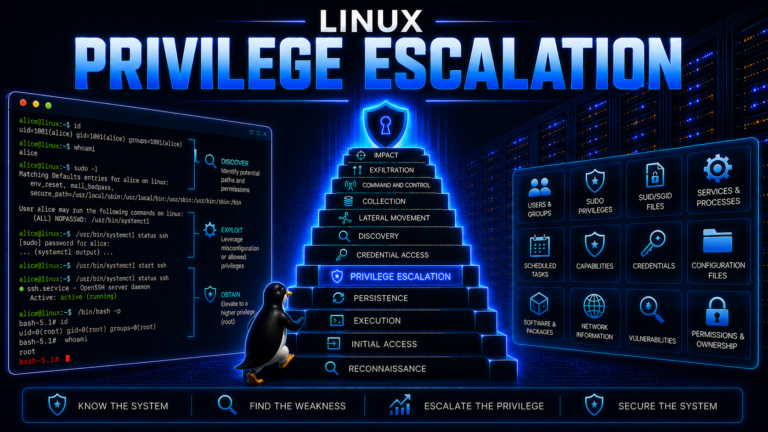
Weak file permissions, writable privileged locations, insecure service configurations, and improperly controlled files can contribute to privilege escalation.
Security assessment should therefore consider not only executable programs but also the ownership and permissions of files and directories used by privileged processes.
Malicious File Modification
If an attacker can modify configuration files, startup files, scripts, or application components, they may influence system behavior.
Critical files should therefore be protected and monitored.
Symbolic Link Attacks
Poorly designed applications can mishandle symbolic links, potentially causing operations intended for one file to affect another.
Applications performing privileged file operations should carefully validate paths and file identities.
Sensitive File Disclosure
Sensitive information can be exposed through:
- Weak permissions
- Backup files
- Temporary files
- Application logs
- Configuration files
- Incorrectly exposed directories
- Improperly secured home directories
Disk Space Exhaustion
An attacker or malfunctioning application can consume available storage.
When critical file systems become full, applications and system services may fail.
Inode Exhaustion
An attacker or application can create enormous numbers of small files, consuming available inodes even when substantial storage capacity remains.
File System Tampering
Unauthorized modification of system files can affect:
- Authentication
- System configuration
- Application behavior
- Logging
- Startup behavior
- Security controls
File integrity monitoring can help identify unauthorized changes to important locations.
Security Best Practices for Linux File System Management
Apply Least Privilege
Users and applications should receive only the file system access required for their legitimate functions.
Avoid granting broad write permissions simply because they are convenient.
Protect Sensitive Files and Directories
Sensitive system and application files should have restrictive ownership and permissions.
Files containing credentials, keys, tokens, and other secrets require particular care.
Manage File Ownership and Permissions
Ownership and permissions should be reviewed periodically.
alice@linux:~$ find /home/alice -type f -printf '%M %u %g %p\n' | head
-rw-r--r-- alice alice /home/alice/project/notes.txt
-rw-r----- alice developers /home/alice/project/app.conf
The output can help administrators review ownership and permission patterns.
Use Secure File and Directory Permissions
Permissions should reflect the intended access model.
For sensitive files, avoid unnecessary access for the group or other users.
Protect System Configuration Files
Important configuration files under /etc and application-specific configuration directories should be protected from unauthorized modification.
Monitor Critical File System Changes
File integrity monitoring can help identify unexpected changes to important files and directories.
Monitoring should focus on security-relevant locations rather than generating unnecessary noise from every temporary file.
Maintain File System Integrity
Use appropriate file system maintenance, storage monitoring, and integrity mechanisms.
Plan Backups and Recovery
Backups should be protected against unauthorized modification and should be tested through restoration exercises.
A backup that cannot be restored reliably does not provide effective recovery protection.
Monitor Disk Space and Inode Usage
Both storage capacity and inode availability should be monitored.
alice@linux:~$ df -h /
Filesystem      Size  Used Avail Use% Mounted on
/dev/sda2        40G   12G   26G  32% /
alice@linux:~$ df -i /
Filesystem Inodes IUsed IFree IUse% Mounted on
/dev/sda2 2621440 84521 2536919 4% /Minimize Unnecessary Files and Services
Removing unused applications, stale temporary files, obsolete backups, and unnecessary data can reduce storage consumption and attack surface.
Linux File System: Key Takeaways
The Linux file system is more than a collection of directories. It is a structured interface through which Linux organizes persistent data, system configuration, user information, devices, kernel interfaces, and application resources.
The most important concepts to understand are:
- Linux uses a hierarchical structure beginning at
/. - Linux file names are generally case-sensitive.
- The FHS provides conventions for important directory locations.
- Files have metadata in addition to their contents.
- Inodes store important metadata and identify file system objects within a file system.
- Linux supports regular files, directories, symbolic links, hard links, devices, named pipes, and sockets.
- Ownership and permissions form a fundamental Linux access-control mechanism.
- Hard links reference the same inode, while symbolic links reference paths.
- Mounting integrates separate file systems into the Linux directory hierarchy.
- Linux supports multiple physical, virtual, memory-based, and network file systems.
- The VFS provides a common abstraction over different file system implementations.
- File descriptors allow processes to interact with open files and other I/O resources.
- Storage capacity and inode availability are separate resources.
- File system weaknesses can contribute to unauthorized access, privilege escalation, data disclosure, and system compromise.
- Secure ownership, permissions, monitoring, integrity protection, storage management, and backups are fundamental to secure Linux file system administration.
Understanding the Linux file system provides an essential foundation for Linux administration, operating-system security, infrastructure security, cloud security, and broader cybersecurity architecture.
References
freedesktop.org – Filesystem Hierarchy Standard
The Filesystem Hierarchy Standard defines conventions and guidelines for the placement of files and directories in Unix-like file systems and provides a common organizational model for software, administrators, and users.
Linux Foundation – Filesystem Hierarchy Standard Specifications
The Linux Foundation’s specification archive provides the established Filesystem Hierarchy Standard (FHS) specification and related reference material.
Linux man-pages – inode(7)
The Linux manual page documents inode information, file types, permissions, link counts, ownership, and related file metadata.